



|
Morpheus Photo Compressor - Tutorial Page 4Emailing your Compressed Picture
Click the Email Picture button to automatically open up a window for composing a new email message
and the current picture will be attached to the email.
If you are able to send an email with the compressed picture attached and have not run into any email error messages or other email program issues, you may skip to the next section of the tutorial. If you ran into an obstacle, please continue reading for some helpful hints.
If you use Outlook, and Outlook is not running, you may see a screen prompting you to log in.
The box is presented by Outlook, and not Morpheus Photo Compressor. Simply click OK to continue into
Outlook. Certain configurations of Outlook and most other email programs such as Outlook Express, Mozilla Thunderbird,
and Eudora will not display a window like this. They will simply continue on into a new email compose window automatically.
Sometimes, Outlook may freeze and fail to load, causing Morpheus Photo Compressor to also appear frozen. If this happens to you, please
ensure that Outlook is already open and running before clicking on the Email Picture button.
Although webmail is not a program that runs on your computer, and cannot support MAPI by itself, some webmail providers may
provide small utilities that run on your computer and notify you of new mail. Some of these utilities may provide MAPI
support, enabling Morpheus Photo Compressor to compose a new email with the attached picture just like desktop email software. This
is beyond the scope of this tutorial though.
|
| Copyright © 1999 - 2026 Morpheus Development, LLC. All Rights Reserved Privacy - Purchase Terms |
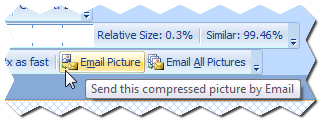 Emailing your picture from inside of Morpheus Photo Compressor lets you avoid having to save each picture,
load your email program every time, find the file to attach, and the other hassles associated with the process
of sending emails with pictures attached.
Emailing your picture from inside of Morpheus Photo Compressor lets you avoid having to save each picture,
load your email program every time, find the file to attach, and the other hassles associated with the process
of sending emails with pictures attached.
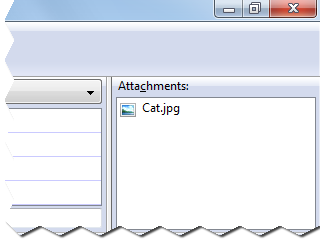 Here is an example of an email window opened up with the attached compressed picture. Typically you will go straight
to this screen when you click on the Email Picture button, assuming you use a desktop based email program.
Here is an example of an email window opened up with the attached compressed picture. Typically you will go straight
to this screen when you click on the Email Picture button, assuming you use a desktop based email program.
 Everything but the "To:" field in the email message is filled in for you. Just enter the email address
of the person you want to send the picture to, click the Send button in your email program, and you are ready to go!
Everything but the "To:" field in the email message is filled in for you. Just enter the email address
of the person you want to send the picture to, click the Send button in your email program, and you are ready to go!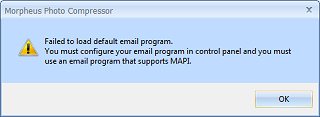 If you see an error message like this, it means that no email program is currently designated in
Windows as your default email program. The common cause of this is if you only use webmail (such as gmail or yahoo mail),
in which case you will have to save a copy of the picture to disk and upload it to your webmail account in order to
send an email with the compressed picture attached.
If you see an error message like this, it means that no email program is currently designated in
Windows as your default email program. The common cause of this is if you only use webmail (such as gmail or yahoo mail),
in which case you will have to save a copy of the picture to disk and upload it to your webmail account in order to
send an email with the compressed picture attached.
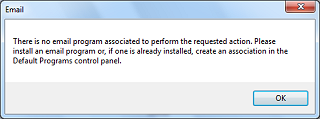 On Windows 7 or later, you may see this screen, indicating that you have no email software installed. Windows 7 does not
come with any email program by default. This most likely means that your current email configuration is entirely web based.
On Windows 7 or later, you may see this screen, indicating that you have no email software installed. Windows 7 does not
come with any email program by default. This most likely means that your current email configuration is entirely web based.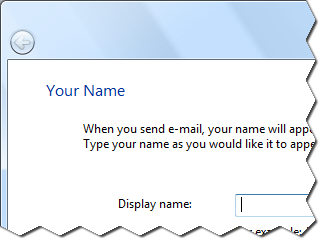 You may alternatively see this wizard if you have no email program set up, but instead Windows Mail (which comes included with Windows Vista)
or Outlook Express (which comes included with Windows XP and earlier) is your default email program. This wizard is prompting you to set
up your email account to use in that program. You can safely cancel the wizard, but this is similar to the previous error in that you have
no email program set up, and will have to save your picture and attach it manually.
You may alternatively see this wizard if you have no email program set up, but instead Windows Mail (which comes included with Windows Vista)
or Outlook Express (which comes included with Windows XP and earlier) is your default email program. This wizard is prompting you to set
up your email account to use in that program. You can safely cancel the wizard, but this is similar to the previous error in that you have
no email program set up, and will have to save your picture and attach it manually.