Saving your Compressed Picture
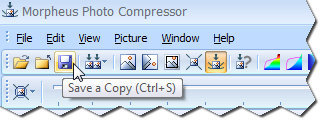 To save a copy of the picture with the current optimization settings, click the Save a Copy button,
pictured here.
To save a copy of the picture with the current optimization settings, click the Save a Copy button,
pictured here.
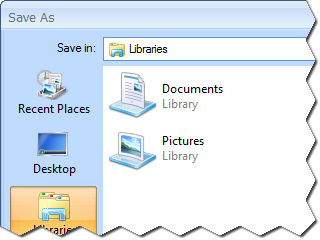 You should now see the Save As dialog, which should resemble this picture. You will see this screen each time you
save, because each time you save, it is a new copy of the picture.
You should now see the Save As dialog, which should resemble this picture. You will see this screen each time you
save, because each time you save, it is a new copy of the picture.
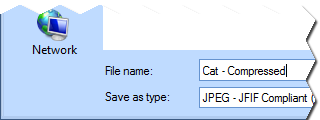 Find the folder you want to save the picture to and type a new name for the compressed picture.
Morpheus Photo Compressor does not automatically save over your original picture, because the compressed picture
may be smaller and thus not suitable for printing. You will likely want to keep the original picture if you ever want a print
quality image. But don't worry, you do not have to do anything special to retain both the original and the compressed pictures.
Morpheus Photo Compressor does not impact the original picture or its location, you are just deciding the location on your
computer for this compressed version, which is a copy of the original. You'll want to use your compressed versions for web
sites, emailing, and for photo sharing.
Find the folder you want to save the picture to and type a new name for the compressed picture.
Morpheus Photo Compressor does not automatically save over your original picture, because the compressed picture
may be smaller and thus not suitable for printing. You will likely want to keep the original picture if you ever want a print
quality image. But don't worry, you do not have to do anything special to retain both the original and the compressed pictures.
Morpheus Photo Compressor does not impact the original picture or its location, you are just deciding the location on your
computer for this compressed version, which is a copy of the original. You'll want to use your compressed versions for web
sites, emailing, and for photo sharing.
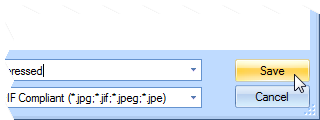 Just click the Save button and you are all done!
Morpheus Photo Compressor will not stop you from explicitly saving over your original picture file though, if you choose to type the exact same
file name, or if you click on the name of an existing file. There will be a confirmation prompt, asking you if you are sure
you want to replace the original file. If you choose yes, the larger, higher quality version of your picture will be lost.



